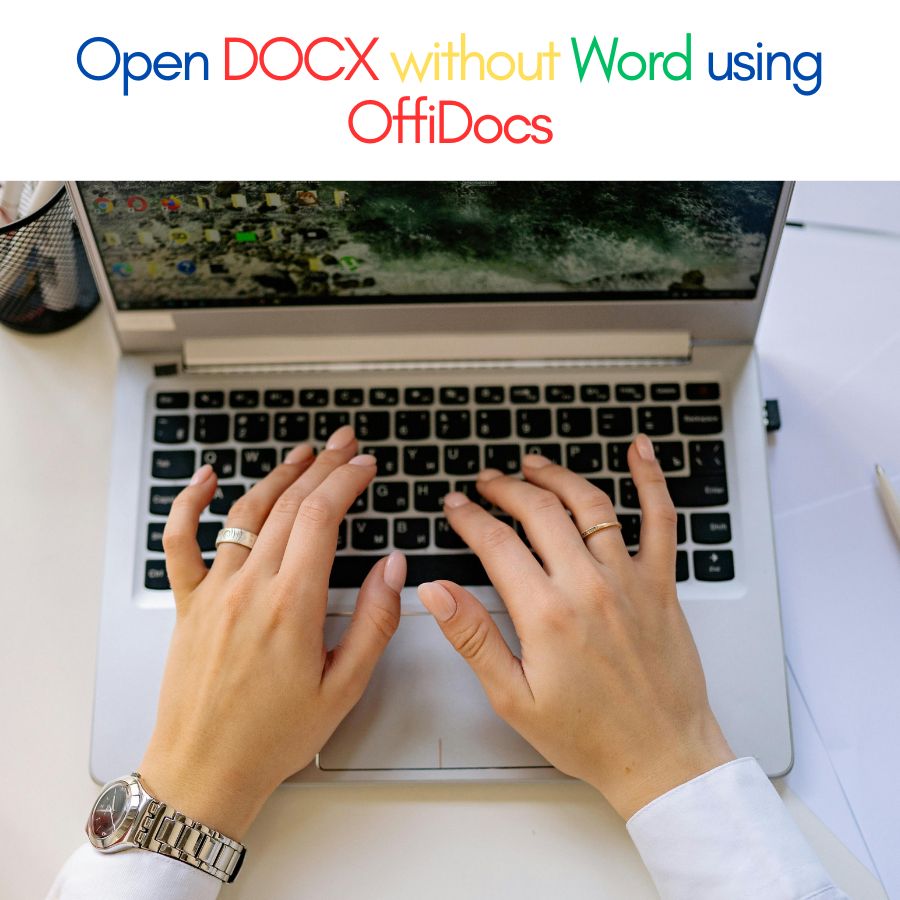
If you’ve ever received a DOCX document and realized you don’t have Microsoft Word installed, don’t worry—you’re not stuck. Today, it’s completely possible to open DOCX without Word, directly from your browser, without installing software or paying for a license.
Whether you’re using Windows, Mac, Linux, or even a Chromebook, there are fast and reliable ways to open and edit DOCX files online while keeping the formatting intact.
In this guide, we’ll show you the best method to open DOCX files without Word, how to edit them, and how to export them back to DOCX or PDF using OffiDocs.
Why You Might Need to Open DOCX Without Word
DOCX is one of the most common document formats in the world, used for:
- resumes and CVs
- contracts and legal documents
- school assignments
- business proposals
- invoices and reports
But Microsoft Word isn’t always available. Many users face situations like:
- their Word license expired
- they’re using a Chromebook
- they’re working on a public computer
- they don’t want to install heavy software
- they need quick editing from a browser
That’s where online document editors become extremely useful.
The Easiest Way to Open DOCX Without Word (No Installation)
The simplest solution is to use a browser-based office suite.
With OffiDocs, you can open DOCX files online and edit them instantly using LibreOffice Writer, without downloading anything.
How to Open a DOCX File Using OffiDocs
Follow these quick steps:
- Go to OffiDocs Online Word Editor
- Upload your DOCX file from your computer or cloud storage
- The document opens in LibreOffice Writer directly in your browser
- Read, edit, format, and save the file
- Export it again as DOCX or PDF
That’s it—no Microsoft Word required.

What Makes OffiDocs a Great Alternative to Microsoft Word?
OffiDocs is not just a simple viewer. It provides a full editing environment, allowing you to work on DOCX files like you would in Word.
Key advantages of using OffiDocs
- Works 100% online (browser-based)
- No Microsoft Word license needed
- Compatible with DOCX formatting
- Supports exporting to DOCX and PDF
- Works on Chromebook, Mac, Windows, and Linux
- Includes powerful tools like LibreOffice Writer
It’s an ideal option for students, freelancers, remote workers, and businesses that need quick access to Word documents.
How to Edit DOCX Without Word
One of the biggest concerns people have is whether they can actually modify the document, not just view it.
With OffiDocs, you can open DOCX without Word and still:
- edit text
- change fonts and styles
- add headings and bullet lists
- insert tables and images
- adjust margins and layout
- add hyperlinks
- fix grammar and formatting
This is especially useful when you receive DOCX documents for review or need to quickly update a report or resume.
Can You Open DOCX Without Word on Any Device?
Yes—and this is one of the biggest benefits of browser-based tools like OffiDocs.
Open DOCX on Windows
You don’t need Microsoft Office installed. Just upload the file and open it online.
Open DOCX on Mac
Even if you don’t have Word or Pages installed, you can open and edit DOCX directly from Safari or Chrome.
Open DOCX on Linux
Linux users often struggle with Microsoft Office compatibility. OffiDocs solves that instantly.
Open DOCX on mobile
You can also access OffiDocs through mobile browsers when needed, perfect for quick edits.
How to Open DOCX Without Word on a Chromebook
Chromebooks are extremely popular in education and remote work environments, but they don’t run traditional desktop Word applications unless you use a subscription or install Android apps.
That’s why many people search for how to open DOCX without Word on a Chromebook.
OffiDocs is one of the best solutions because it works directly inside Chrome.
Steps to open DOCX on Chromebook using OffiDocs
- Open Chrome
- Go to OffiDocs
- Upload your DOCX file
- Edit using LibreOffice Writer online
- Save your updated file in DOCX or PDF
No extra apps, no downloads, no compatibility headaches.
Will the Formatting Break When Opening DOCX Without Word?
This is one of the most common concerns—and for good reason.
DOCX files often include:
- custom fonts
- tables and charts
- headers and footers
- page breaks
- complex formatting
- numbered lists
When you use low-quality converters, formatting can easily break.
The good news:
OffiDocs uses LibreOffice Writer, which is one of the most powerful and trusted alternatives to Microsoft Word. It supports DOCX formatting very well.
In most cases, your DOCX file will open with:
- correct layout
- preserved styles
- intact tables
- consistent spacing
Of course, extremely complex Word templates may require small adjustments, but for everyday documents, resumes, reports, and contracts, the formatting is usually preserved.
How to Save or Export Your File After Editing
Once you open DOCX without Word and make changes, you’ll want to save the document correctly.
OffiDocs allows you to export in multiple formats depending on your needs.
Export back to DOCX
If you want to send the file to someone who uses Microsoft Word, simply save it as DOCX again.
Export as PDF
If you want to share a final version (perfect for contracts, resumes, or printing), exporting to PDF is a great option.
Export to other formats
Depending on your workflow, you can also export to formats like:
- ODT
- TXT
- HTML
This flexibility is one of the reasons many professionals choose browser-based office tools.
FAQ: Open DOCX Without Word
Here are the most common questions users ask when searching for this solution.
Can I edit it too?
Yes. If you use OffiDocs, you can not only open DOCX without Word, but also fully edit it.
You can update text, change formatting, insert images, create tables, and make professional edits just like in Microsoft Word.
Will the formatting break?
In most cases, no.
OffiDocs runs LibreOffice Writer, which supports DOCX documents very well and preserves most formatting such as:
- fonts and text styles
- headings and spacing
- bullet points and numbering
- page layout
- tables and images
For highly complex templates, minor layout differences may appear, but for standard documents the formatting is typically maintained.
Can I do this on a Chromebook?
Absolutely.
OffiDocs is browser-based, so it works perfectly on Chromebook using Chrome. You don’t need to install Microsoft Word or any apps.
This makes it an ideal DOCX solution for students, teachers, and remote workers using ChromeOS.
Can I export back to DOCX/PDF?
Yes.
After editing, OffiDocs allows you to export your file back to:
- DOCX (to keep Word compatibility)
- PDF (for printing or sharing)
- other formats depending on your needs
This means you can open, edit, and deliver professional documents without Microsoft Word.
Why OffiDocs Is a Smart Choice for DOCX Files
Many online tools only allow viewing or basic conversions. OffiDocs stands out because it offers a complete online office environment.
OffiDocs is ideal if you need:
- a free alternative to Microsoft Word
- a DOCX editor that works online
- a Chromebook-friendly DOCX solution
- fast exporting to PDF
- an installation-free workflow
For people who handle documents regularly, this is a practical and efficient way to stay productive.
Final Thoughts: Open DOCX Without Word in Seconds
You don’t need Microsoft Word to access DOCX files anymore. With modern browser tools like OffiDocs, you can open DOCX without Word, edit it, and export it back to DOCX or PDF in just a few clicks.
If you want a fast, flexible, and professional solution that works across all devices—including Chromebooks—OffiDocs is one of the easiest options available.
Try It Now
If you need to open or edit a DOCX file immediately, use OffiDocs to work directly from your browser with no installation required.
Another useful tool inside the OffiDocs ecosystem is GoSearch, a powerful online search feature that helps users quickly find templates, document resources, and related files while working online. If you are opening DOCX documents for work or study, GoSearch can save time by allowing you to search for relevant content, examples, or references directly from the same browser-based environment—making your workflow faster and more efficient without switching between multiple platforms.