Introduction
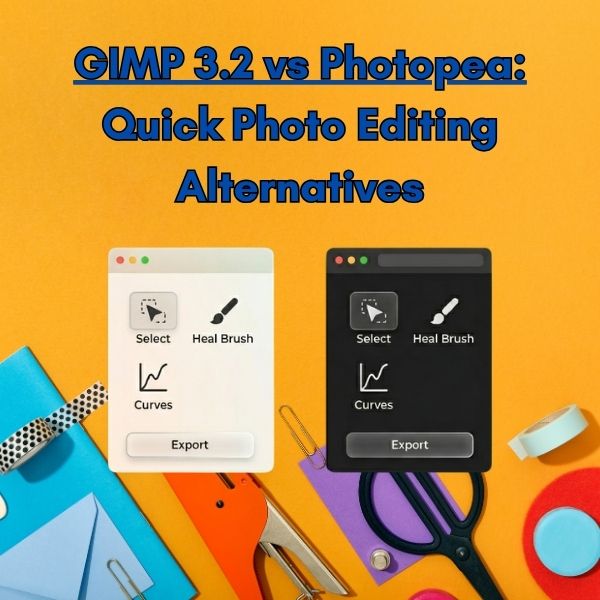
If you’re looking for quick photo editing alternatives to Photoshop, two names come up almost immediately: GIMP 3.2 and Photopea. Both tools are powerful, free (or mostly free), and capable of handling everyday image edits—but they approach the task very differently.
So which one should you actually use when you just need to edit something fast?
This guide gives you a clear, no-fluff comparison focused on real-world use: speed, ease of use, and practical editing power—so you can choose the right tool in seconds.
GIMP 3.2 vs Photopea: The Core Difference
Before diving deeper, here’s the simplest way to understand them:
- GIMP 3.2 → A full desktop-level editor (like Photoshop), now also usable online.
- Photopea → A browser-based Photoshop clone focused on familiarity and convenience.
If your priority is quick photo editing alternatives, the choice depends on whether you value speed and simplicity or power and flexibility.
User Interface & Ease of Use
Photopea: Familiar and Instant
Photopea wins immediately in terms of accessibility:
- No installation required
- Opens directly in your browser
- Interface almost identical to Photoshop
- Great for users already familiar with Adobe tools
You can open a PSD, make a quick change, export, and be done in minutes.
Best for:
- Beginners
- Photoshop users who want zero learning curve
- Fast, one-off edits
GIMP 3.2: More Powerful, Slightly Heavier
GIMP has improved significantly, but it still requires a bit more adaptation:
- Interface is different from Photoshop
- More customizable, but less intuitive at first
- Slight learning curve for new users
However, once you get used to it, GIMP becomes much more flexible.
Best for:
- Users who want deeper control
- Repeated editing tasks
- More advanced workflows
Speed for Quick Edits
Photopea: Faster to Start
If your definition of “quick edit” is:
- Resize an image
- Add text
- Adjust brightness/contrast
- Export quickly
Then Photopea is faster because:
- It loads instantly in the browser
- No setup required
- Simple UI reduces friction
GIMP 3.2: Faster for Complex Edits
For slightly more involved tasks:
- Working with multiple layers
- Advanced selections
- Masking or retouching
GIMP becomes more efficient once it’s open.
And with browser-based versions available, you can now skip installation entirely—making it much more competitive for quick edits than before.
Features Comparison
Photopea Features
- PSD, XD, Sketch file support
- Layer editing
- Basic filters and adjustments
- Smart objects (limited)
- Works fully in-browser
Limitations:
- Can feel slower with large files
- Ads in free version
- Limited performance compared to desktop tools
GIMP 3.2 Features
- Advanced layer system
- Powerful selection tools
- Plugins and extensions
- High-performance editing
- Better control over image manipulation
Strengths:
- More precise editing
- Handles complex projects better
- No reliance on internet performance
Real Use Cases: Which One Should You Pick?
Choose Photopea if you want:
- A quick edit in under 2–3 minutes
- To open and tweak a PSD file fast
- A familiar Photoshop-like interface
- Zero setup
Example: Updating a banner, resizing a social media image, or making a quick text change.
Choose GIMP 3.2 if you want:
- More control over your edits
- Better performance for larger files
- Advanced tools without limitations
- A long-term alternative to Photoshop
Example: Removing backgrounds, detailed retouching, or working with multiple layers.
The Real Winner for Quick Edits
If we’re being completely practical:
- Photopea wins for ultra-fast, simple edits
- GIMP wins for powerful editing—even in quick sessions
But here’s the key shift:
GIMP is no longer just a “heavy desktop tool.”
You can now use it online, directly in your browser, combining:
- The power of desktop editing
- The convenience of browser access
Final Veredict
If your only goal is speed, Photopea is hard to beat.
But if you want a tool that can scale from quick edits to advanced work without switching platforms, GIMP 3.2 is the smarter choice.
Best Overall Pick:
- Quick + Simple → Photopea
- Quick + Powerful → GIMP 3.2 (online)
Start Editing Without Installing Anything
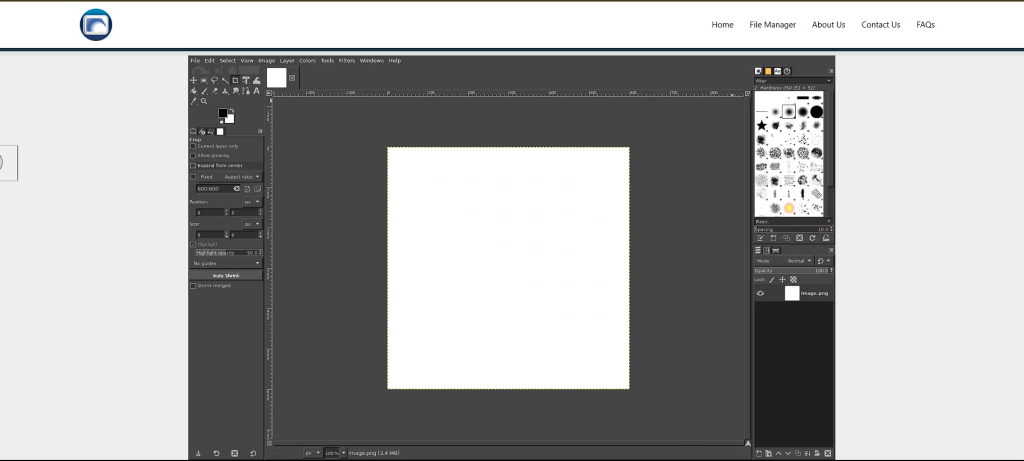
If you want real editing power without installing desktop software, the best option is to use GIMP directly in your browser.
You get:
- Full editing capabilities
- No setup required
- A true Photoshop alternative
Use GIMP online in your browser when you need real editing power without installing desktop software.
Discover More Tools with GoSearch
If you’re constantly looking for tools like GIMP or Photopea, GoSearch makes it easier to find exactly what you need—fast. Whether you’re searching for online editors, productivity apps, or browser-based alternatives to traditional software, GoSearch helps you discover and access them in seconds without wasting time browsing multiple sites.
It’s a simple way to streamline how you find and use tools for your daily workflow.