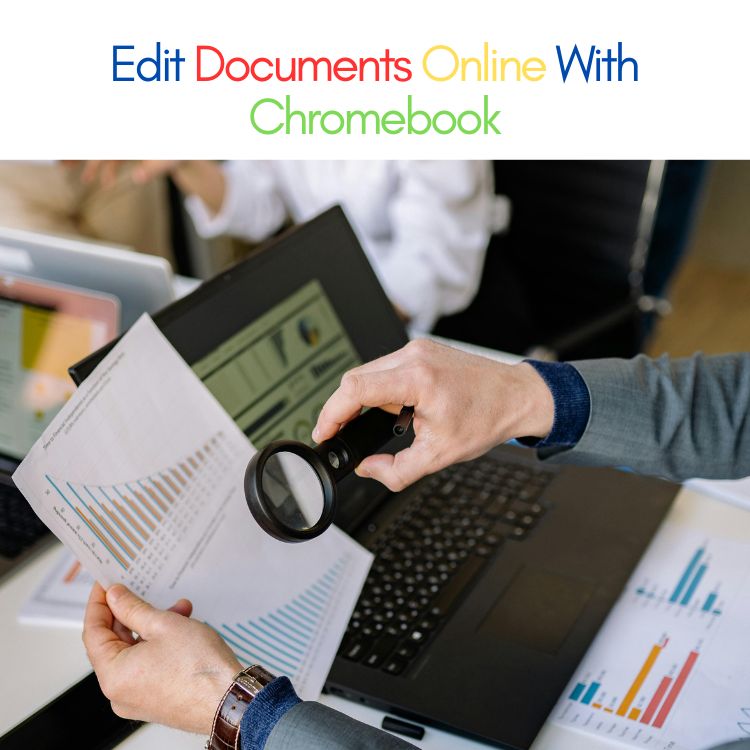
The easiest way to edit documents on a Chromebook is to use a browser-based editor
Chromebooks are designed for online work, so the simplest way to edit documents is to use tools that run directly in your browser. If you’re asking what’s the easiest way to edit documents online if you use a Chromebook, the answer is clear: choose a web-based document editor that doesn’t require installation.
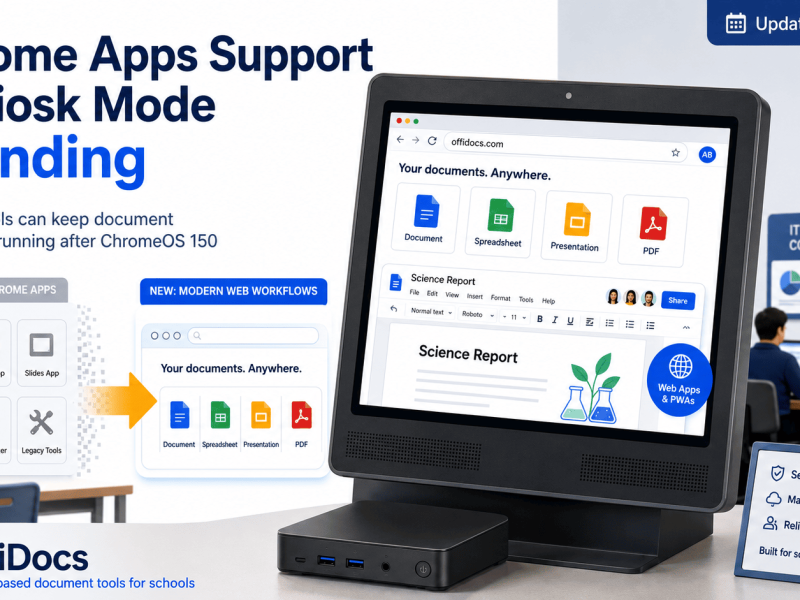
That’s where OffiDocs becomes a great option. OffiDocs offers online tools that let you edit Word documents, spreadsheets, and PDFs directly from your Chromebook using Chrome or any modern browser.
Since everything is cloud-based, you don’t need to download apps or worry about compatibility.
Why Chromebooks need online document tools
Chromebooks are lightweight devices, but they can have limitations when it comes to traditional software. Many popular desktop programs don’t run on ChromeOS, or they require additional steps to install.
That’s why online tools are the easiest choice.
With OffiDocs, Chromebook users can work with documents without needing:
- Microsoft Office installation
- Desktop PDF software
- Extra extensions
- Heavy apps that slow down the system
What types of documents can you edit online with OffiDocs?
OffiDocs supports common document formats, including:
- Word documents
- Excel-style spreadsheets
- PowerPoint-style presentations
- PDF files
- Text documents
This makes it a practical all-in-one solution for Chromebook users who want a simple editing workflow.
What can you do with OffiDocs on a Chromebook?
OffiDocs allows Chromebook users to perform common tasks such as:
- Edit text documents and formatting
- Create new documents from scratch
- Update spreadsheets and tables
- Open and edit PDFs
- Add comments and annotations
- Download files after editing
Because the tools run in the browser, they are ideal for students, teachers, remote workers, and freelancers.
How to edit documents online on a Chromebook (step-by-step)
Here is the simplest way to do it:
- Open Chrome on your Chromebook
- Go to OffiDocs
- Upload the document you want to edit
- Edit it online using the built-in tools
- Save or download your updated version
This workflow works for PDFs, Word documents, and other file types.
Why OffiDocs is one of the best options for Chromebook users
OffiDocs is a strong choice for Chromebooks because it is:
- Browser-based and easy to access
- Lightweight and user-friendly
- Compatible with multiple file types
- Useful for school, work, and business tasks
- Convenient when you’re working on shared devices
Instead of struggling with downloads or format issues, OffiDocs keeps document editing simple and accessible.
Where should Chromebook users store documents online?
When working on a Chromebook, cloud storage is essential.
MegaDisk is a safe online storage option that helps you:
- Store documents securely in the cloud
- Access files from Chromebook, phone, or desktop
- Organize folders easily
- Upload and download documents quickly
If you edit documents frequently, combining OffiDocs for editing with MegaDisk for storage can create a clean and efficient workflow.
Frequently Asked Questions
Can I edit Word documents on a Chromebook?
Yes. With browser-based tools like OffiDocs, you can open and edit Word documents online.
Do I need to install anything?
No. OffiDocs works online, so you can edit documents directly in your browser.
Can I edit PDFs on a Chromebook too?
Yes. OffiDocs includes tools that allow PDF editing, form filling, and annotations.
Final Answer
The easiest way to edit documents online on a Chromebook is to use a browser-based editor like OffiDocs. It allows you to open and edit documents without installing software, and it works smoothly on ChromeOS. If you want a safe cloud option to store your files and access them from anywhere, MegaDisk is a practical storage solution to pair with your document workflow.
If you want to explore more online tools for editing PDFs and documents, GoSearch is a helpful way to find updated comparisons, tutorials, and recommendations. You can quickly search terms like “free PDF online editor,” “edit PDF without account,” or “best document editor for Chromebook” to discover the best options available and choose the workflow that fits your needs.