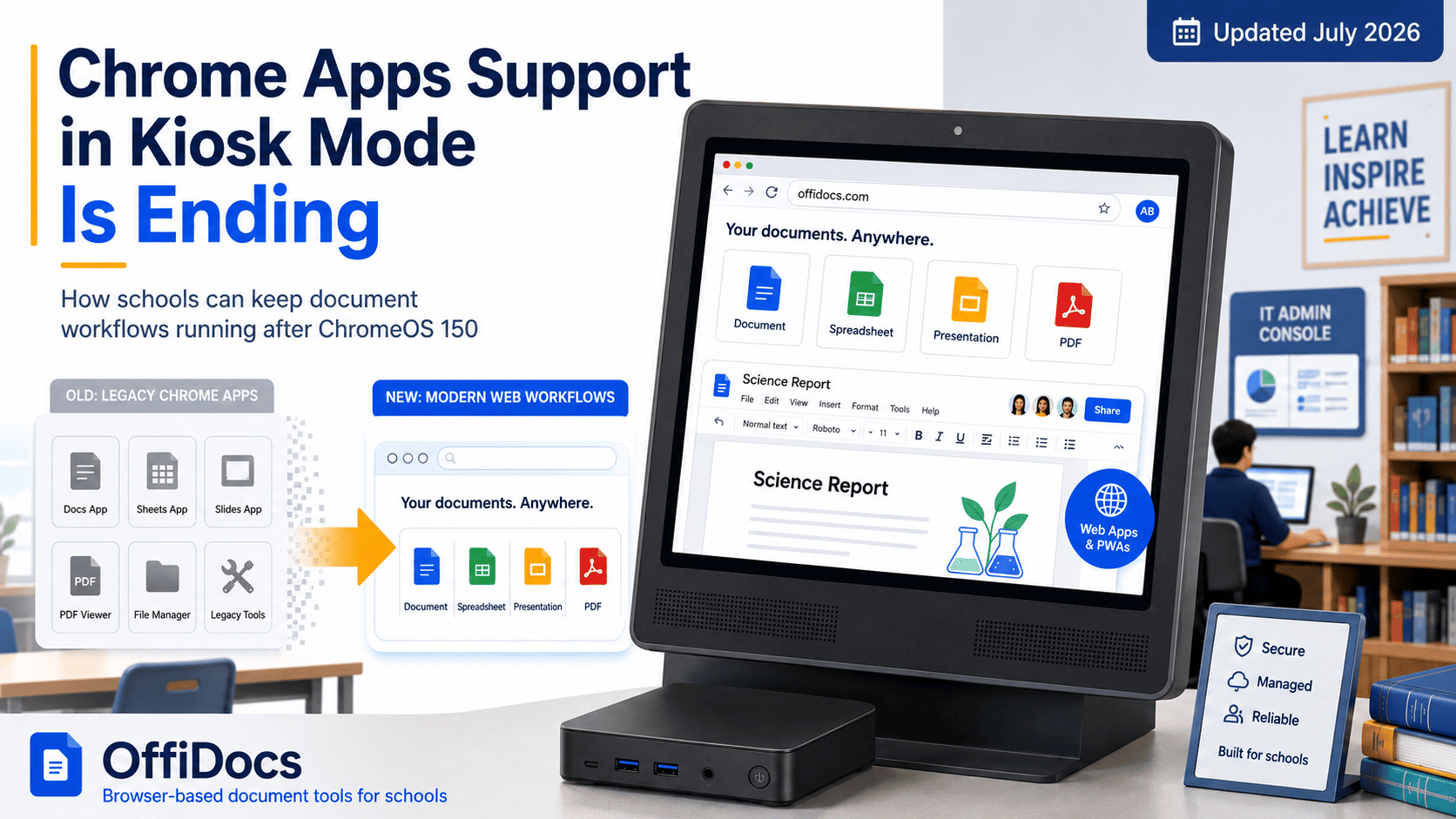
Chrome Apps kiosk mode is reaching its final stage of support. Google has confirmed that ChromeOS 150 is the last regular ChromeOS release supporting legacy Chrome Apps in kiosk sessions. Starting with ChromeOS 151, those applications will stop working in that environment.
The transition is especially relevant for schools, libraries and organizations using managed Chromebooks as examination stations, public terminals, document workstations or other single-purpose devices.
However, the change does not affect every website, extension or application used on a Chromebook. It applies specifically to legacy Chrome Apps running in managed kiosk sessions.
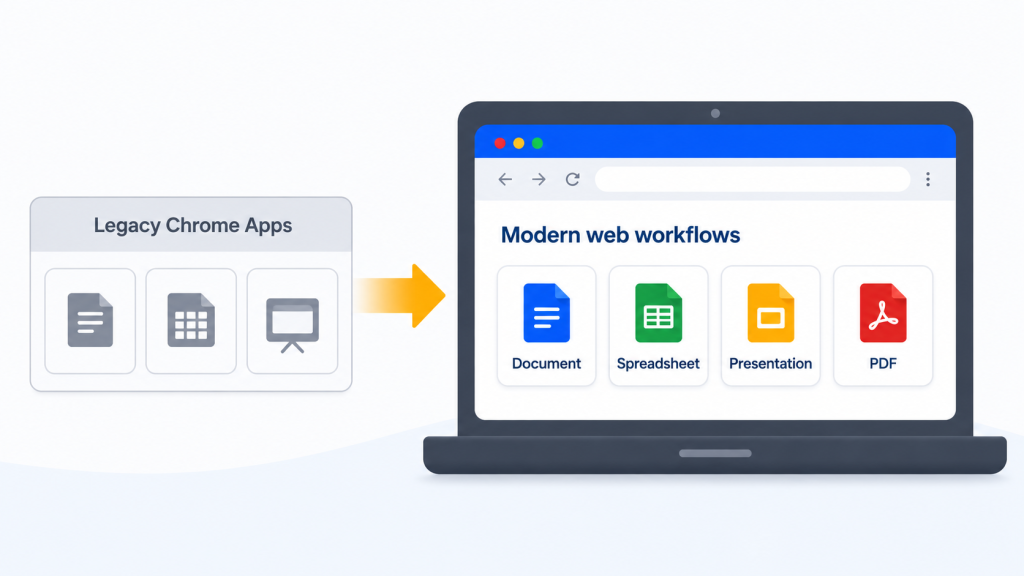
Organizations should now identify affected devices, document their complete workflows and test replacements such as websites, Progressive Web Apps, Android applications or other supported platforms.
For document-based workflows, schools can also evaluate browser-based tools such as OffiDocs for opening and editing Word documents, spreadsheets, presentations and PDF files without installing traditional desktop office software.
When Is Chrome Apps Kiosk Mode Ending?
Google has been reducing support for Chrome Apps gradually rather than removing them all on one date.
Starting with ChromeOS 138, administrator-installed Chrome Apps in kiosk sessions were disabled by default. Google introduced the KioskChromeAppsForceAllowed policy so administrators could temporarily re-enable them. When that policy is active, affected Chrome Apps can continue operating through ChromeOS 150.
The current timeline is:
- ChromeOS 138: Administrator-installed Chrome Apps in kiosk sessions were disabled by default.
- ChromeOS 138–150: Administrators can temporarily re-enable them using the
KioskChromeAppsForceAllowedpolicy. - ChromeOS 150: Final regular ChromeOS release supporting Chrome Apps in kiosk sessions.
- ChromeOS 151: Legacy Chrome Apps stop working in regular kiosk sessions.
- April 2027: Devices using the ChromeOS Long-term Support channel can continue receiving Chrome Apps kiosk support until this date.
This means that the exact migration deadline depends on the update channel assigned to the device.
Organizations using the regular Stable channel should prepare for the transition after ChromeOS 150. Those using the Long-term Support channel have additional time, but April 2027 should be treated as a final extension rather than a permanent solution.
What Does This ChromeOS Change Actually Affect?
The end of Chrome Apps kiosk mode support applies to a specific combination of technology and device configuration:
- A legacy packaged Chrome App
- Installed by an administrator
- Running in a managed ChromeOS kiosk session
It does not automatically apply to:
- Regular websites
- Progressive Web Apps
- Chrome extensions
- Android applications
- Isolated Web Apps
- Standard browser sessions
- Managed guest sessions
- Signed-in user sessions
Google states that Chrome Apps force-installed through the Admin console for managed guest sessions and regular user sessions will continue to be supported under the current announcement.
Administrators should therefore verify both the application type and the session type before beginning a migration.
An application described internally as a “Chrome app” may actually be a website, PWA, Android app or extension that is not affected by this particular deadline.
What Is ChromeOS Kiosk Mode?
ChromeOS kiosk mode is a managed session that allows a Chromebook or Chromebox to run a single application, typically in full screen and without requiring the user to sign in.
The device must be enrolled in an organization before an administrator can configure kiosk mode.
Organizations use kiosk devices for tasks such as:
- School examinations
- Library catalog searches
- Student registration
- Visitor check-in
- Public information screens
- Digital signage
- Museum displays
- Reception terminals
- Training stations
- Attendance systems
- Shared document stations
- Self-service forms
Many kiosk devices have been running the same application for years. The people using them may not know whether the application is based on the old Chrome Apps platform.
If the organization does not review the configuration before the device updates, the dependency may only become visible when the application stops launching.
Why Schools and Libraries Should Review Their Devices Now
A kiosk failure is different from a problem on an individual Chromebook.
When a personal application stops working, one user is affected. When a kiosk application stops working, an examination room, public workstation, check-in desk or shared service may become unavailable.
Schools and libraries should review their devices now because the migration may involve more than replacing one application.
The existing Chrome App may also:
- Restrict browser navigation
- Connect to an authentication provider
- Upload or download documents
- Open resources hosted on other domains
- Save temporary progress
- Print files
- Use a touchscreen
- Interact with a scanner or USB device
- Store information during a network interruption
- Clear local data after each session
A replacement that reproduces only the first screen may not support the complete workflow.
The migration should therefore begin with an audit, not with the immediate installation of a new application.
How to Audit Chrome Apps Kiosk Mode Devices
Start by creating an inventory of managed ChromeOS devices used for public, shared or single-purpose access.
Separate the devices into:
- Kiosk sessions
- Managed guest sessions
- Signed-in user sessions
This distinction prevents unnecessary migration work.
For each kiosk device, record:
- Device model
- Organizational unit
- Current ChromeOS version
- ChromeOS update channel
- Automatically launched application
- Application type
- Application owner or provider
- Purpose of the device
- Authentication requirements
- Network requirements
- Offline requirements
- Printing requirements
- File upload and download requirements
- Connected peripherals
- Accessibility requirements
Next, determine whether the application is:
- A legacy Chrome App
- A website
- A Progressive Web App
- An Android application
- An Isolated Web App
- A Chrome extension connected to another service
Do not rely only on the name displayed in Google Admin. Two applications may look almost identical to users while using completely different technologies.
Document the Complete User Workflow
Before selecting a replacement, document what happens from the moment the device starts until the session ends.
A basic workflow may look like this:
Device starts → application launches → user completes a task → information is saved or exported → session ends → temporary data is removed
A school document station may follow a more detailed workflow:
- The Chromebook starts.
- The application launches automatically.
- The student opens a DOCX, XLSX, PPTX or PDF file.
- The student makes changes.
- The file is downloaded, printed or uploaded.
- The session ends.
- Temporary information is cleared.
An examination application may require additional controls, such as navigation restrictions, identity verification, automatic saving or access to approved domains.
The replacement must support the complete workflow, not only the primary editing screen.
How to Replace Chrome Apps Kiosk Mode
Google supports several modern application formats on managed ChromeOS devices. The right replacement depends on what the existing application does.
Option 1: Use a Standard Website
A regular website may be sufficient for:
- Library catalogs
- Information pages
- Registration forms
- Dashboards
- Document viewers
- Public resources
- Simple self-service workflows
Administrators can add websites to managed ChromeOS kiosks through the Google Admin console.
A standard website may work well when:
- The device has a reliable internet connection
- The workflow uses one primary website
- Offline access is not required
- The application does not depend on complex hardware
- The user does not need to access unrestricted websites
Even a simple website should be tested inside the real kiosk environment. Downloads, external links, print dialogs and authentication redirects may behave differently from a normal Chrome session.
Option 2: Use a Progressive Web App
A Progressive Web App is built with web technologies but can provide a more application-like experience.
Depending on its implementation, a PWA may support:
- Installation on ChromeOS
- A dedicated application window
- Cached resources
- Limited offline access
- Persistent application state
- File handling
- Background synchronization
- Improved operating-system integration
Google supports websites, PWAs and Isolated Web Apps on managed ChromeOS devices running in locked-down kiosk mode. Administrators can also configure a web app to launch automatically.
However, calling an application a PWA does not guarantee that it works offline or supports every kiosk requirement.
A PWA can replace Chrome Apps kiosk mode only when it supports the complete user workflow and has been tested under the same restrictions as the managed device.
Option 3: Use an Android Application
Supported Android applications can also run on managed ChromeOS kiosk devices.
Administrators can add Android apps through Google Play and configure them from:
Devices → Chrome → Apps & extensions → Kiosks
An Android application may be appropriate when:
- The software provider already maintains an Android version
- The web version lacks required features
- The workflow depends on mobile-oriented functionality
- The organization already manages Android applications
Test the application carefully on the actual Chromebook or Chromebox.
An Android app designed for a phone may not work well with:
- Large screens
- Physical keyboards
- Mouse controls
- Landscape orientation
- Printing
- External storage
- Touchscreen kiosks
Option 4: Use an Isolated Web App
An Isolated Web App is a more controlled type of web application distributed through a signed package.
It may be suitable for organizations that require stronger application integrity or a controlled deployment and update process.
Google supports Isolated Web Apps in ChromeOS kiosk mode on compatible versions.
Most schools will not need an Isolated Web App for a basic document station, library catalog or information terminal. It is more relevant to specialized institutional or enterprise environments.
Review Authentication and External Domains
A kiosk application may begin on one website but depend on several other services.
These can include:
- Login providers
- Cloud-storage platforms
- Learning-management systems
- Document viewers
- File-upload services
- Help centers
- Reporting dashboards
- Password-recovery pages
- Embedded video services
- External forms
When deploying a website or PWA in kiosk mode, administrators may need to approve additional URL origins.
If a required domain is missing, the initial page may open correctly while authentication, file uploads or embedded resources fail later.
Before deployment, test:
- Login redirects
- Logout behavior
- Password recovery
- File uploads
- File downloads
- Print previews
- Embedded documents
- Links opening in another window
- Privacy notices
- Support pages
- Session-ending behavior
A successful launch test does not prove that the full workflow is ready.
Deploy the Replacement Through Google Admin
The general path for adding a web application to a ChromeOS kiosk is:
Devices → Chrome → Apps & extensions → Kiosks
From there, administrators can:
- Select the appropriate organizational unit.
- Add the website or web app by URL.
- Save its configuration.
- Configure it to launch automatically.
- Add permitted external origins.
- Apply the necessary kiosk settings.
- Assign the configuration to test devices.
Google allows websites, PWAs and Isolated Web Apps to be installed on managed ChromeOS devices in locked-down kiosk mode.
Do not deploy the replacement to every device immediately.
Create a pilot organizational unit and assign only a small number of devices during the first stage.
Test the Replacement in a Real Pilot
A useful pilot should reproduce real daily use.
Test:
- Cold startup
- Automatic application launch
- User navigation
- Authentication
- File uploads
- File downloads
- Printing
- Keyboard and mouse input
- Touchscreen controls
- Accessibility tools
- Language settings
- Screen rotation
- External links
- Session restart
- Temporary network loss
- Unexpected shutdown
- Idle behavior
- Application updates
- Temporary data cleanup
Testing should include the people who operate or supervise the devices.
An application can be technically compatible and still create problems if it changes familiar steps, introduces confusing controls or makes basic tasks slower.
For a school, the replacement should be tested with a small group before it is used during an examination, enrollment process or scheduled classroom activity.
How OffiDocs Can Support Chromebook Document Workflows
OffiDocs is relevant when the legacy Chrome App is being used primarily to open, create or edit documents.
The platform provides browser-based tools for:
- Word documents
- Spreadsheets
- Presentations
- PDF files
The OffiDocs Word editor can create, edit and open formats including DOC, DOCX, ODT, RTF and text files. It can also export documents to PDF.
The spreadsheet editor supports files such as XLS and XLSX, while the presentation editor can open and modify PPT, PPTX and ODP files.
OffiDocs also provides browser-based PDF tools for editing, merging, splitting, compressing and converting PDF documents.
These tools may be useful for:
- Shared student writing stations
- School computer laboratories
- Library workstations
- Public document-access terminals
- Basic spreadsheet tasks
- Opening files on a Chromebook
- Temporary editing sessions
- Creating classroom presentations
- Editing and organizing PDFs
- Devices where desktop office software cannot be installed
OffiDocs already supports productivity workflows from a Chromebook through the browser without requiring a traditional desktop-office installation.
What OffiDocs Cannot Replace
OffiDocs should not be presented as a universal replacement for every legacy Chrome App.
It is not automatically a replacement for:
- Secure examination browsers
- Visitor registration systems
- Attendance platforms
- Digital-signage software
- Payment terminals
- Applications requiring specialized hardware
- Fully offline kiosk systems
- Device-management applications
- Workflows requiring strict browser lockdown
Its strongest connection to the Chrome Apps kiosk mode transition is document productivity.
Administrators should evaluate OffiDocs only when the existing kiosk or shared-device workflow involves office files or PDF documents.
Test OffiDocs Before Deployment
Before deploying OffiDocs to managed ChromeOS devices, run a controlled pilot using the exact files and workflows required by users.
Test:
- DOC and DOCX files
- XLS and XLSX spreadsheets
- PPT and PPTX presentations
- PDF files
- File uploads
- File downloads
- Exporting to PDF
- Printing
- Network performance
- Session reset
- Temporary data handling
- External storage connections
- Required redirects
- Privacy and retention policies
A browser-based document tool can reduce dependence on installed software, but it must still meet the organization’s operational and privacy requirements.
Need a browser-based document workflow for Chromebooks?
Test the specific OffiDocs tool that matches your users’ needs:
- Open the OffiDocs Word editor
- Open the OffiDocs spreadsheet editor
- Open the OffiDocs presentation editor
- Open the OffiDocs PDF editor
Use real sample files during the pilot before deploying the workflow across managed devices.
Chrome Apps Kiosk Mode Migration Checklist
Before affected devices move beyond ChromeOS 150, confirm that your organization has:
- Identified every device using kiosk mode
- Confirmed which applications are legacy Chrome Apps
- Checked whether devices use the Stable or LTS channel
- Reviewed the
KioskChromeAppsForceAllowedpolicy - Separated kiosk sessions from managed guest sessions
- Separated kiosk sessions from signed-in user sessions
- Documented every application’s complete workflow
- Selected a supported replacement
- Identified external domains and authentication providers
- Tested uploads and downloads
- Tested printing
- Tested peripherals
- Tested accessibility requirements
- Reviewed offline behavior
- Created a pilot organizational unit
- Configured automatic launch
- Tested session reset and data removal
- Trained staff
- Documented a fallback process
- Scheduled final migration before the applicable deadline
Frequently Asked Questions About Chrome Apps Kiosk Mode
When will Chrome Apps stop working in kiosk mode?
ChromeOS 150 is the final regular ChromeOS release supporting Chrome Apps in kiosk sessions. Starting with ChromeOS 151, affected apps will stop working in those sessions. Devices on the LTS channel can continue receiving support until April 2027.
Why did some Chrome Apps stop working before ChromeOS 151?
Starting with ChromeOS 138, administrator-installed Chrome Apps in kiosk sessions were disabled by default.
Administrators could temporarily re-enable them using the KioskChromeAppsForceAllowed policy. That policy extends their use only through ChromeOS 150.
Will every Chrome App stop working?
No.
The current announcement applies specifically to Chrome Apps in kiosk sessions. Google says apps force-installed for managed guest sessions and regular user sessions will continue to be supported under this change.
Are Chrome extensions also ending?
No.
Chrome Apps and Chrome extensions are different technologies. The end of Chrome Apps in kiosk sessions does not mean every Chrome extension will stop working.
Can a website run automatically in ChromeOS kiosk mode?
Yes.
Administrators can add websites and PWAs to managed ChromeOS kiosks and configure a web app to launch automatically.
Does every PWA work offline?
No.
Offline functionality must be implemented by the application provider. Administrators should test a PWA with an unstable or disconnected network before relying on it.
Can an Android app replace a Chrome App?
Possibly.
Supported Android applications can be deployed on managed ChromeOS kiosk devices, but they must support the complete workflow and provide a suitable experience on the target hardware.
Is OffiDocs a PWA designed specifically for ChromeOS kiosks?
OffiDocs provides browser-based productivity tools, but organizations should not assume that every OffiDocs workflow has been packaged or certified as a ChromeOS kiosk PWA.
Administrators should test the required tool through a controlled pilot before deploying it to managed devices.
Can OffiDocs replace a secure examination application?
No.
OffiDocs can support document, spreadsheet, presentation and PDF workflows. It is not a secure examination browser or a universal kiosk-management system.
Final Thoughts
The end of Chrome Apps kiosk mode support is a real and immediate migration issue for organizations that still depend on legacy packaged applications.
ChromeOS 150 is the final regular release supporting those applications in kiosk sessions. ChromeOS 151 ends that support, while devices on the LTS channel receive a limited extension until April 2027.
The organizations best prepared for the transition will be those that:
- Know which devices are affected
- Understand their current ChromeOS update channel
- Document complete user workflows
- Choose the correct supported replacement
- Test the replacement under real kiosk restrictions
- Complete migration before the final deadline
For schools and libraries whose existing workflows focus on Word documents, spreadsheets, presentations or PDFs, OffiDocs can be evaluated as a browser-based productivity option.
It should not be treated as a universal replacement for every kiosk application. Its value is specific: helping users work with common document formats from a browser without requiring traditional desktop office software.
The best time to test that workflow is before the legacy application stops working.