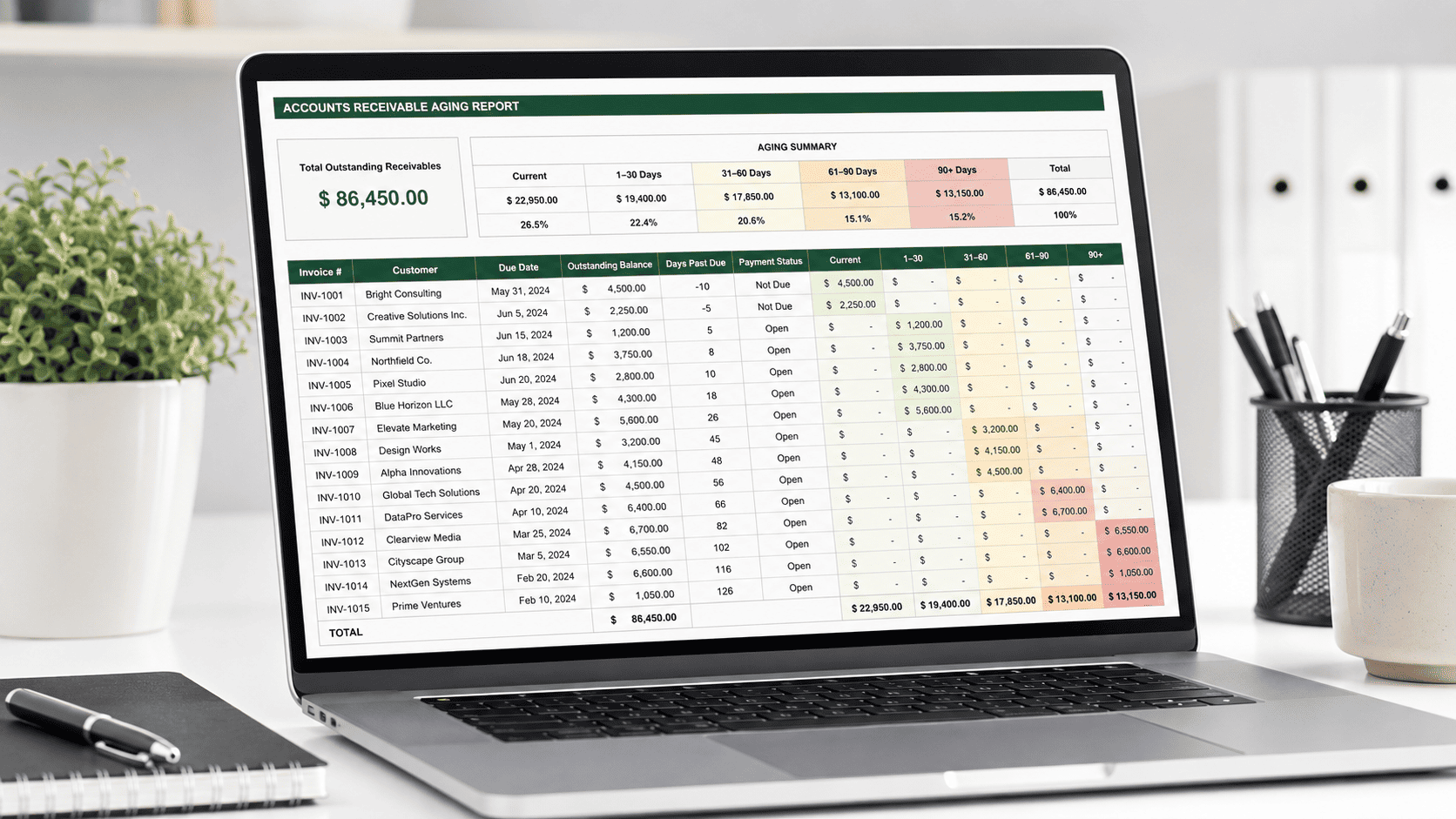
An accounts receivable Excel template helps you track unpaid invoices, outstanding balances, due dates, and overdue customer payments in one spreadsheet.
Instead of checking invoices one by one, you can use an AR tracker to see what customers owe you, what is already overdue, and which balances need attention first.
In this guide, you will build a practical accounts receivable tracker with two sheets: Invoices and Aging. You will also learn the formulas for balances, days past due, aging buckets, payment status, and collection priority.
You can create the spreadsheet directly in your browser with OffiDocs Excel Online, so you do not need a desktop spreadsheet application to follow the process.
What is an accounts receivable Excel template?
An accounts receivable Excel template is a spreadsheet that tracks money customers still owe a business after receiving an invoice.
A useful template normally records the invoice number, customer, invoice date, due date, original amount, payments received, outstanding balance, and payment status.
It can also create an accounts receivable aging report. This report separates outstanding balances according to how long they have been overdue.
| Aging category | What it means |
|---|---|
| Current / Not Due | Payment deadline has not passed |
| 1–30 Days Past Due | Invoice recently became overdue |
| 31–60 Days Past Due | Invoice needs closer follow-up |
| 61–90 Days Past Due | Higher collection priority |
| 90+ Days Past Due | Oldest outstanding receivables |
This structure gives you a quick answer to three important questions: who owes money, how much is outstanding, and how late is the payment?
Why use an accounts receivable spreadsheet?
Revenue does not always mean cash has reached your bank account.
For example, imagine a business has issued $30,000 in invoices this month. That number may look healthy. However, the business could still face a cash-flow problem if $12,000 remains unpaid.
An AR aging report makes that difference visible.
| Status | Outstanding amount |
| Current / Not Due | $7,500 |
| 1–30 Days Past Due | $2,500 |
| 31–60 Days Past Due | $1,000 |
| 61–90 Days Past Due | $500 |
| 90+ Days Past Due | $500 |
| Total Outstanding | $12,000 |
As a result, you can see more than total sales. You can see which part of that revenue still needs to turn into cash.
That makes the spreadsheet useful for freelancers, agencies, consultants, small businesses, and other teams that invoice customers.
How to build an accounts receivable Excel template
A simple accounts receivable Excel template only needs two worksheets.
The first sheet stores individual invoices. The second summarizes unpaid balances by customer.
Keeping those functions separate makes the workbook easier to understand and maintain.
Sheet 1: Create the invoices tracker
Create a worksheet called Invoices.
Use the following structure:
| Column | Field | Purpose |
| A | Invoice # | Unique invoice reference |
| B | Customer | Customer or company name |
| C | Date Issued | Date the invoice was created |
| D | Due Date | Expected payment date |
| E | Amount | Original invoice value |
| F | Paid Amount | Payments received so far |
| G | Balance | Amount still unpaid |
| H | Days Past Due | Days since the due date |
| I | Status | Current payment status |
| J | Notes | Follow-up or payment notes |
The first six fields contain your invoice information. The next fields can update automatically with formulas.
Calculate the outstanding balance
In cell G2, enter:
=MAX(0,E2-F2)
This formula subtracts payments received from the original invoice amount.
For example, if an invoice totals $2,000 and the customer has paid $750, the remaining balance is $1,250.
Using MAX(0,...) also prevents the formula from displaying a negative balance if someone accidentally enters a payment above the invoice amount.
Copy the formula down the Balance column as you add invoices.
Calculate days past due
Aging should normally start from the due date, not the invoice date.
Suppose you issue an invoice on August 1 with payment due on August 31. On August 20, the invoice is 19 days old. However, it is not overdue.
Therefore, the calculation must compare today’s date with the due date.
In cell H2, enter:
=IF(G2=0,0,MAX(0,TODAY()-D2))
The formula works like this:
| Condition | Result |
| Balance is zero | 0 days past due |
| Due date has not passed | 0 days past due |
| Due date has passed | Number of overdue days |
Spreadsheet note: Depending on your regional settings, your spreadsheet may use semicolons (;) instead of commas (,) between formula arguments.
Assign invoice status automatically
You can also calculate the status instead of updating it manually.
In cell I2, enter:
=IF(G2=0,"Paid",IF(TODAY()>D2,IF(F2>0,"Partially Paid - Overdue","Overdue"),IF(F2>0,"Partially Paid","Open")))
This formula identifies five common situations:
| Situation | Status |
| No remaining balance | Paid |
| Not due and no payment | Open |
| Not due and partially paid | Partially Paid |
| Overdue and no payment | Overdue |
| Overdue and partially paid | Partially Paid – Overdue |
Because the formula depends on the balance and due date, the status can change automatically as time passes.
Build an accounts receivable aging report
Now create a second worksheet called Aging.
This sheet turns the invoice-level information into a customer-level summary.
Use this structure:
| Column | Field |
| A | Customer |
| B | Total Outstanding |
| C | Current / Not Due |
| D | 1–30 Days |
| E | 31–60 Days |
| F | 61–90 Days |
| G | 90+ Days |
| H | % Overdue |
| I | Collection Priority |
Enter each customer once in column A.
Next, use SUMIFS formulas to calculate each customer’s balance.
Calculate total outstanding by customer
In B2, enter:
=SUMIFS(Invoices.$G$2:$G$1000,Invoices.$B$2:$B$1000,$A2)
This formula adds every outstanding invoice balance associated with the customer in A2.
Calculate current invoices
In C2, enter:
=SUMIFS(Invoices.$G$2:$G$1000,Invoices.$B$2:$B$1000,$A2,Invoices.$H$2:$H$1000,0)
Paid invoices also have zero days past due. However, their balance is already zero. Therefore, they do not add anything to this result.
The remaining amount represents invoices with an unpaid balance that are not yet overdue.
Calculate 1–30 days past due
In D2, enter:
=SUMIFS(Invoices.$G$2:$G$1000,Invoices.$B$2:$B$1000,$A2,Invoices.$H$2:$H$1000,">=1",Invoices.$H$2:$H$1000,"<=30")
Calculate 31–60 days past due
In E2, enter:
=SUMIFS(Invoices.$G$2:$G$1000,Invoices.$B$2:$B$1000,$A2,Invoices.$H$2:$H$1000,">30",Invoices.$H$2:$H$1000,"<=60")
Calculate 61–90 days past due
In F2, enter:
=SUMIFS(Invoices.$G$2:$G$1000,Invoices.$B$2:$B$1000,$A2,Invoices.$H$2:$H$1000,">60",Invoices.$H$2:$H$1000,"<=90")
Calculate 90+ days past due
In G2, enter:
=SUMIFS(Invoices.$G$2:$G$1000,Invoices.$B$2:$B$1000,$A2,Invoices.$H$2:$H$1000,">90")
Once you copy these formulas down, the sheet becomes an automatic accounts receivable aging report.
How to read an accounts receivable aging report
The value of an aging report is not the formula itself. Instead, its value comes from making overdue balances easier to identify.
Current / Not Due
These invoices still have an outstanding balance, but their payment deadline has not passed.
They normally do not need collection action yet.
1–30 Days Past Due
These invoices have recently become overdue.
A simple reminder may be enough. For example, the customer may need the invoice sent again or may be waiting for an internal approval.
31–60 Days Past Due
At this point, follow-up becomes more important.
Check whether there is a payment dispute, missing purchase order, billing error, or other issue delaying the payment.
61–90 Days Past Due
These balances deserve higher attention.
Review previous communication and decide what follow-up makes sense based on your customer’s payment terms and your own collection process.
90+ Days Past Due
These are your oldest outstanding invoices.
They should stay highly visible in the report so they do not disappear inside newer receivables.
However, collection and write-off decisions depend on your contracts, accounting practices, and local requirements.
Add collection priority to your AR spreadsheet
You can make the Aging sheet easier to review by assigning a simple priority.
In I2, enter:
=IF(G2>0,"High",IF(F2>0,"Medium",IF(E2>0,"Watch","Standard")))
The result works as follows:
| Aging situation | Priority |
| 90+ balance exists | High |
| 61–90 balance exists | Medium |
| 31–60 balance exists | Watch |
| No older balance | Standard |
This system does not replace your collection policy. Instead, it helps you decide where to look first.
Use conditional formatting for overdue invoices
A large spreadsheet can become difficult to scan.
Therefore, use conditional formatting to make older receivables more visible.
For example, give the 90+ Days column a strong warning format when the balance is above zero. Then apply a softer warning to the 61–90 Days column.
You can also highlight invoice rows when their status changes to Overdue.
Keep the formatting simple. Its purpose is to highlight risk, not decorate the workbook.
Calculate the percentage of overdue receivables
Total outstanding AR does not always tell the full story.
For example, two customers can each owe $5,000. One customer’s entire balance may still be current, while most of the other customer’s balance may already be overdue.
You can calculate the overdue percentage in H2:
=IF(B2=0,0,(D2+E2+F2+G2)/B2)
Format the result as a percentage.
This metric makes it easier to compare customers with different total balances.
Accounts receivable Excel template example
Consider this example:
| Invoice # | Customer | Due Date | Amount | Paid | Balance | Days Past Due |
| INV-101 | North Studio | Aug 30 | $1,500 | $0 | $1,500 | 0 |
| INV-102 | Bright Labs | Jul 15 | $2,000 | $500 | $1,500 | 42 |
| INV-103 | North Studio | Jun 10 | $900 | $0 | $900 | 77 |
| INV-104 | Green Works | May 1 | $1,250 | $0 | $1,250 | 117 |
The Aging sheet immediately makes several things clear.
North Studio has one current invoice and another in the 61–90-day range. Bright Labs has an overdue, partially paid invoice. Meanwhile, Green Works has a 90+ day balance.
That information is much easier to act on than a long list of invoice rows.
How to create an accounts receivable Excel template online
You do not need Microsoft Excel installed on your computer to create the workbook.
With OffiDocs Excel Online, you can work with spreadsheet files directly from your browser.
Follow these steps:
- Open OffiDocs Excel Online and create a spreadsheet.
- Rename the first worksheet
Invoices. - Add the invoice fields and formulas described above.
- Create a second worksheet called
Aging. - Add the
SUMIFSformulas for each aging bucket. - Format amounts as currency and overdue percentages as percentages.
- Add conditional formatting for older balances.
- Update the Paid Amount field whenever a customer pays an invoice.
Once the workbook is set up, you only need to maintain the invoice and payment data.
Accounts receivable Excel template vs accounting software
An AR spreadsheet and accounting software can both track receivables. However, they suit different levels of complexity.
| An AR spreadsheet can work well when… | Dedicated software may help when… |
| Invoice volume is manageable manually | Manual updates take too much time |
| One person maintains the records | Several people manage collections |
| Payment matching is straightforward | Automated reconciliation matters |
| You need a clear aging overview | Automated reminders are required |
| Your workflow is simple | You need accounting or CRM integrations |
There is no universal number of customers that tells you when to switch.
Instead, ask whether maintaining the spreadsheet still takes less effort than automating the process.
Common accounts receivable Excel template mistakes
Calculating aging from the invoice date
An invoice being 30 days old does not necessarily mean it is 30 days overdue.
The invoice date tells you how old the invoice is. The due date tells you whether payment is late.
Ignoring partial payments
If a customer pays $750 on a $2,000 invoice, the remaining $1,250 still belongs in accounts receivable.
Do not mark partially paid invoices as fully paid.
Using inconsistent customer names
North Studio, North Studios, and North Studio LLC may all refer to the same customer.
However, spreadsheet formulas will treat them as different values.
Use consistent customer names or add a customer ID.
Updating the AR spreadsheet too late
An aging report quickly loses value when payments received two weeks ago still appear as outstanding.
Update payment information regularly.
Mixing accounts receivable and accounts payable
These terms describe opposite sides of a transaction.
Accounts receivable is money customers owe your business.
Accounts payable is money your business owes vendors and suppliers.
Keep them in separate workflows.
What is DSO in accounts receivable?
Days Sales Outstanding, or DSO, estimates how long a business takes to collect its credit sales.
A commonly used formula is:
DSO = (Average Accounts Receivable ÷ Net Credit Sales) × Number of Days
For example, you might calculate DSO for a month or quarter.
However, use net credit sales rather than total sales when possible. Otherwise, cash sales can distort the result.
For small businesses, DSO can provide useful context. Even so, the aging buckets may be more immediately actionable because they show the specific invoices behind the outstanding balance.
Weekly accounts receivable tracking routine
Once your accounts receivable Excel template is working, review it regularly.
A practical weekly routine is:
- Enter payments received since the previous review.
- Check overdue invoices and confirm their due dates.
- Review 90+ and 61–90-day balances first.
- Look at 31–60-day balances that may need follow-up.
- Add relevant collection notes.
- Compare the aging distribution with the previous review.
The goal is simple: make sure an overdue invoice never becomes invisible.
Build your accounts receivable Excel template with OffiDocs
A useful accounts receivable system does not need dozens of worksheets or a complex financial dashboard.
Start with two.
The Invoices sheet records what happened. The Aging sheet shows what needs attention.
Together, they reveal your outstanding balances, overdue invoices, aging periods, and collection priorities.
You can build this accounts receivable Excel template in your browser with OffiDocs Excel Online. Start with the invoices that are currently open. Then add more automation only when your workflow actually needs it.
Open OffiDocs Excel Online and create your accounts receivable tracker.
Frequently asked questions about accounts receivable Excel templates
What is an accounts receivable Excel template?
An accounts receivable Excel template is a spreadsheet that tracks customer invoices, due dates, payments, outstanding balances, and overdue amounts. It can also create an aging report that groups receivables according to how long they have been overdue.
How do I track accounts receivable in Excel?
Create one row for each invoice. Record the customer, invoice number, issue date, due date, amount, and payments received.
Then use formulas to calculate the remaining balance and days past due. A second worksheet can summarize those amounts by customer.
How do I calculate days overdue in Excel?
If the due date is in D2 and the outstanding balance is in G2, use:
=IF(G2=0,0,MAX(0,TODAY()-D2))
The formula returns zero when the invoice is paid or not yet overdue. Otherwise, it returns the number of days past the due date.
What are accounts receivable aging buckets?
Accounts receivable aging buckets group unpaid invoices by age.
A common structure uses Current / Not Due, 1–30, 31–60, 61–90, and 90+ days past due.
What is the difference between accounts receivable and accounts payable?
Accounts receivable is money customers owe your business.
Accounts payable is money your business owes vendors and suppliers.
Can I create an accounts receivable spreadsheet without Excel installed?
Yes. You can create and edit spreadsheet files with a browser-based tool such as OffiDocs Excel Online.
How often should I update an accounts receivable spreadsheet?
Update payment data whenever practical and review overdue invoices regularly.
For many small businesses, a weekly review provides a simple and manageable process.
Does an accounts receivable template replace accounting software?
No. A spreadsheet works well for straightforward AR tracking.
Dedicated software may become more useful when you need automated reminders, payment reconciliation, integrations, approvals, or complex multi-user workflows.