Quick Answer
You can open an XLSX file in your browser without installing Excel. Online tools like OffiDocs allow you to upload, view, and edit Excel spreadsheets directly from the web. Just open the editor, upload the file, and start working with the spreadsheet instantly.
This solution is useful when your computer doesn’t have Microsoft Excel installed or when you prefer working online without downloading software.
Step 1: Open an online .xlsx file editor
To open an XLSX file in your browser, start by using a web-based spreadsheet editor such as OffiDocs.
This tool runs completely online, so you don’t need to install Excel or any additional software. The editor is compatible with the standard .XLSX spreadsheet format used by Microsoft Excel.
Simply open the tool in your browser to begin.
Step 2: Open an XLSX file in your browser
Once the editor is open, upload the spreadsheet from your device.
After uploading, the file will open directly in the browser-based editor. You can immediately:
- View all worksheets
- Scroll through tables and data
- Check formulas
- Navigate between sheets
Because everything runs online, this works on Windows, macOS, Linux, or Chromebook.
Step 3: Edit and export the spreadsheet
After you open the XLSX file in your browser, you can work with the spreadsheet much like you would in Excel.
Typical actions include:
- Editing cells and formulas
- Sorting or filtering data
- Adding or deleting sheets
- Updating tables or calculations
When you’re finished, download the file again in XLSX format or export it as PDF.

Bonus: Start faster with Excel templates
If you regularly create spreadsheets, templates can help you save time.
You can explore a large collection of ready-to-use Excel templates here:
https://www.offidocs.com/smart-excel-templates
These templates help you quickly create things like:
- Budget spreadsheets
- Financial trackers
- Project planning sheets
- Business dashboards
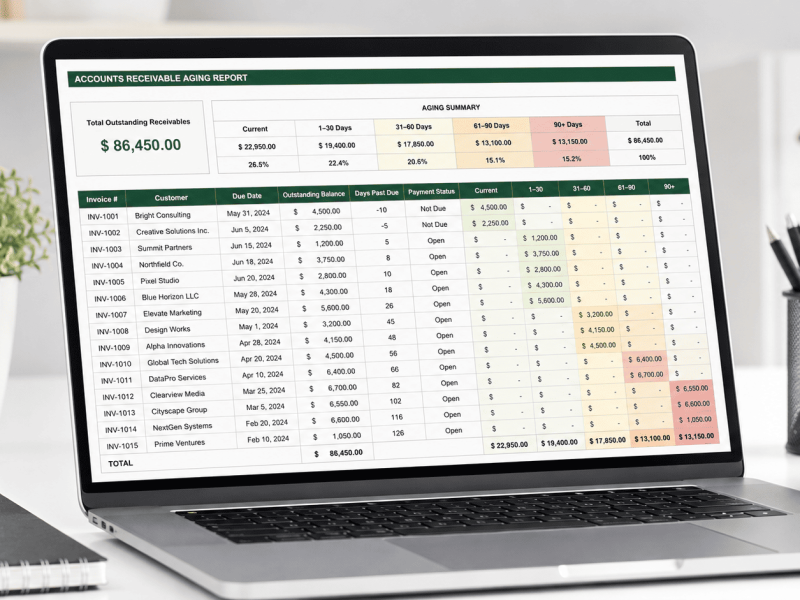
They are fully compatible with Excel and can also be opened directly in the OffiDocs browser-based spreadsheet editor.
FAQ
Can I edit it or only view it?
Yes. With OffiDocs you can both view and edit XLSX files directly in your browser. You can modify cells, update formulas, and manage worksheets.
Do I need OneDrive or Office 365?
No. Unlike solutions from Microsoft such as Microsoft OneDrive or Microsoft 365, you do not need an account or subscription to open the spreadsheet.
Will formulas or macros work?
Most standard Excel formulas work normally. However, advanced macros or VBA scripts may not run, since they depend on the desktop version of Microsoft Excel.
Can I export back to XLSX or PDF?
Yes. After editing the spreadsheet you can download it again as XLSX or export it as PDF for sharing or printing.
Explore more tools with GoSearch
If you frequently work with online documents, you can also use OffiDocs GoSearch to find tools, templates, and utilities available across the OffiDocs platform. GoSearch helps you quickly discover resources that can be used directly from the browser, making it easier to manage spreadsheets, documents, and other files without installing software.
Open an XLSX file in my browser (no install)
Use OffiDocs to open an XLSX file in your browser, edit spreadsheets, and export them again — without installing Excel.