Cleaning duplicate data in Excel is one of the most common — and most stressful — tasks when working with spreadsheets. One wrong click and you might delete valuable information. The good news? Excel gives you multiple ways to clean duplicate data safely, without risking your dataset. In this guide, you’ll learn step-by-step methods to remove duplicates, double-check your data, and avoid the classic mistake of “deleting too much.”
Why Duplicate Data Is a Problem
Duplicate entries can distort your analysis, inflate totals, and lead to incorrect decisions. Even a single repeated value can affect reports, dashboards, or client data.
That’s why cleaning duplicates is not just about tidiness — it’s about data accuracy and trust.
Before You Start: Protect Your Data
Before removing anything, follow this golden rule:
- Make a copy of your dataset
- Or duplicate the sheet before editing
Excel permanently deletes duplicates when using its built-in tool, so having a backup ensures you don’t lose important information by mistake.
Method 1: Highlight Duplicates First (Safest Approach)
If you’re worried about deleting the wrong rows, this is your best starting point.
Steps:
- Select your data range
- Go to Home → Conditional Formatting → Highlight Cells Rules → Duplicate Values
- Choose a color and click OK
Excel will visually highlight duplicates so you can review them before deleting anything.
Why this works:
- You see duplicates before removing them
- You can manually decide which rows to keep
- Ideal for sensitive datasets (clients, invoices, emails)
👉 Pro tip: Sort by color after highlighting to group duplicates together and review them faster.
Method 2: Use “Remove Duplicates” (Quick but Requires Care)
This is the fastest way to clean duplicate data in Excel.
Steps:
- Select your dataset
- Go to Data → Remove Duplicates
- Choose the columns to check
- Click OK
Excel will remove duplicate rows and keep only the first instance.
Important tip (this avoids mistakes):
You can choose which columns define a duplicate.
Example:
- If you only select “Email,” Excel removes rows with repeated emails
- If you select “Name + Email,” it removes rows only when both match
This is critical — selecting the wrong columns is the #1 reason people delete the wrong rows.
Method 3: Extract Unique Data Without Deleting Anything
If you want zero risk, don’t delete anything — just create a clean version.
Use Advanced Filter:
- Go to Data → Advanced
- Select “Copy to another location”
- Check Unique records only
- Choose where to copy the cleaned data
This method keeps your original dataset untouched and generates a duplicate-free version.
Method 4: Use Formulas to Identify Duplicates
For more control, you can flag duplicates with formulas like:
COUNTIFUNIQUE(in newer Excel versions)
This approach helps you:
- Identify duplicates programmatically
- Filter or analyze before removing
- Build automated cleaning workflows
Common Mistakes (And How to Avoid Them)
1. Removing duplicates from only one column
If you select a single column, Excel only checks duplicates there — not the entire row.
👉 Always select the full dataset when needed.
2. Not checking column selection
Excel lets you choose which columns define duplicates.
👉 Double-check your selections before clicking OK.
3. Deleting without reviewing
Using “Remove Duplicates” blindly can remove valid records.
👉 Always preview duplicates first using Conditional Formatting.
4. Not keeping a backup
Once removed, duplicates cannot be easily recovered.
👉 Always duplicate your sheet first.
A Smarter Workflow for Safe Data Cleaning
If you want a reliable process, follow this order:
- Highlight duplicates
- Review and validate
- Backup your data
- Remove duplicates or extract unique values
This reduces risk and gives you full control over your dataset.
Clean Duplicate Data Online (No Installation Needed)
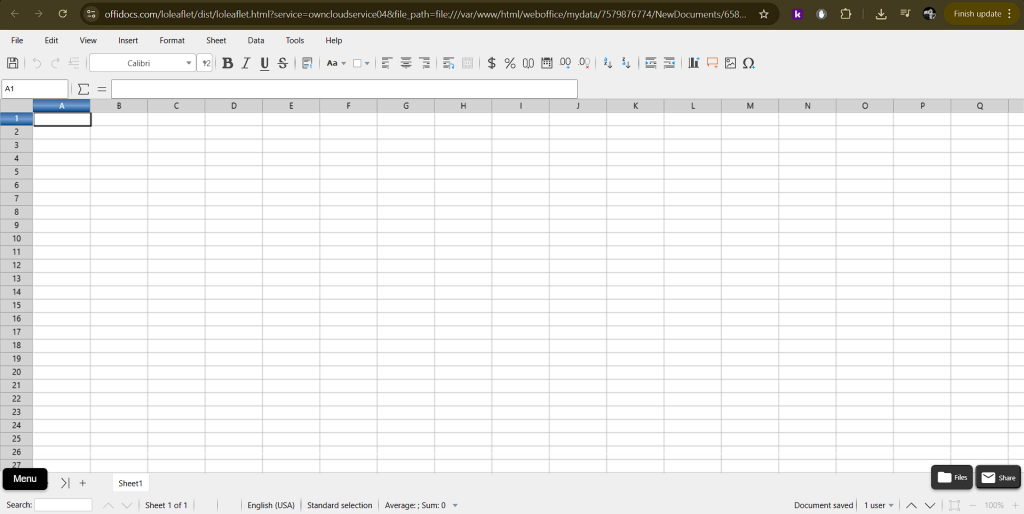
If you prefer not to install Excel or want a faster workflow, you can clean duplicate data directly from your browser using tools available on OffiDocs.
With OffiDocs, you can:
- Open Excel files online
- Use built-in spreadsheet tools
- Clean and organize data without installing software
This is especially useful for quick edits, remote work, or low-resource environments.
Related OffiDocs Tools You May Find Useful
When working with spreadsheets and data cleaning, you may also benefit from:
- Online Excel editors for quick data fixes
- Cloud-based file management tools
- Secure document handling directly in your browser
These tools help streamline your workflow, especially when handling multiple files or datasets.
Final Thoughts
Cleaning duplicate data in Excel doesn’t have to be risky. The key is not just knowing how to remove duplicates — but how to do it safely.
By previewing duplicates, selecting the right columns, and keeping backups, you can avoid the most common mistakes and maintain full control over your data.
Clean your spreadsheet online and keep only the rows you actually need
Discover More with GoSearch
If you want to find more productivity tools, tutorials, or browser-based solutions like OffiDocs, explore GoSearch. It helps you quickly discover relevant tools, guides, and resources to improve your workflow — whether you’re cleaning data, editing documents, or working online without installations.