

Bank of Images in Chrome with OffiDocs

Ad
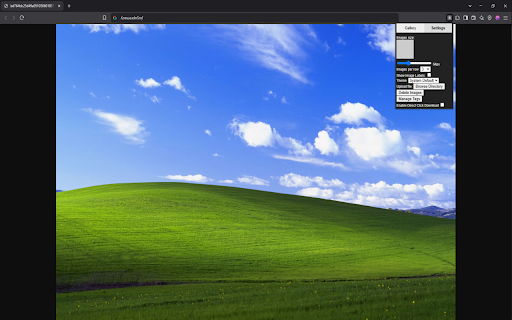
DESCRIPTION
A Chrome extension that lets you store images and copy them with a click.
How to Add Images:
- Drag & Drop: Simply drag image files from your computer and drop them onto the extension’s popup window.
- Browse & Upload: In the Settings tab, click the “Choose Images” button to browse for files on your computer.
- Direct Click Download: Enabling this option (in Settings) lets you click any image on any webpage to instantly add it to your gallery—no manual download needed. It automatically deactivates if you don’t click an image for 10 seconds, or if you turn it off yourself. Note: certain special image formats or long page sessions may prevent the script from working, so reloading the page typically fixes it.
Using Images:
- Click to Copy: Clicking any image in the gallery copies it to your clipboard.
- Drag & Drop: You can also drag images into other applications (though not all platforms, e.g. Discord, support this).
Labels (Names):
- Rename: Double-click an image’s label to change its name.
- Hide Labels: You can toggle label visibility in Settings.
Search Bar:
- Name Search: Typing a partial or full name filters images by their labels.
- Tag Search: You can also filter by tags by typing each tag followed by a space (e.g., tag1 tag2). The gallery will only show images that have all those tags. You can combine both tags and name fragments in the same query (e.g., tag1 tag2 example_name) to narrow results further.
Bank of Images web extension integrated with the OffiDocs Chromium online


